
Timetable change notifications in Telegram and MAX
Updated 28.10.2026
VISH reports changes to the RUT (MIIT) timetable in Telegram and MAX and with an in-app notification. Turn on the way you want in "Settings" → "Notifications": you need to sign in only for the bots.
Changes to the timetable and to your account reach you in three ways: the bell on the Schedule screen, in-app notifications, and the bots in Telegram and MAX. Everything that changed over two weeks is collected on a separate screen, "What changed".
The bell
The bell is only on the Schedule screen — at the top, next to the group picker. On a desktop it opens a panel, on a phone it opens a "Notifications" sheet. The number on the bell is how much is unread; more than nine shows as "9+". Without signing in the bell has no notifications: it says "Notifications come after sign-in" and offers "Sign in", and after you sign in it shows the changes of the selected group.
The list has two parts. Timetable changes of the selected group or teacher: "New lesson", "Lesson changed", "Lesson removed", "Lesson cancelled", with the date, the room and a list of what changed — "changed: room, time". And account events under the heading "Account": "Your role changed", "What your role can do has changed", "Your institutes and groups changed", and also "public card" events — if a moderator hid your card or photo, cleared fields of the card or showed it again ("A moderator hid your public card", "Your public card is visible again" and so on), with the reason if the moderator gave one; the notification does not say who complained about the card.
The list counts as read when the panel closes; on a desktop there is also a "Mark as read" button. The "Clear all" button hides the list of timetable changes for you and deletes the account events.
Notifications are counted from the moment the app was first opened on this device. Changes that happened earlier do not get into the list — a new phone does not open onto a wall of old entries.
In-app notifications
The "Notifications" section in the settings, the "In-app notifications" switch. The app sends a notification when a lesson is added, changed or cancelled. If several lessons of one group changed at once, you get one notification, for example "3 changes in the ShAD-211 timetable this week": up to five lines and "and N more", and tapping it opens the timetable on the day of the nearest change. If the app is already open, tapping the notification switches it to the right screen without a reload. A single change arrives as a separate message; the same goes for the bots. You get only what concerns you — your subgroup or your teacher. Notifications are tied to the selected group or teacher, not to the account, so signing in is not needed — but while nothing is selected, the switch is off with the hint "Pick a group or a teacher first".
If the browser has blocked notifications, a "How to turn on" button stands in place of the switch. It opens the "How to turn on push" page with steps for your browser (in the installed app on iPhone — "iPhone Settings → Notifications → VISH → Allow Notifications") and a "Check again" button; when you come back from the system settings you do not need to press anything — the page checks by itself and turns notifications on as soon as the permission appears. In Safari on iPhone there is "Install" instead of the switch, and if the subscription failed — "Retry". If the browser took the permission back while the switch was on, the switch turns itself off and says so; when you come back from the settings, turn it on again. If the browser's notification service changed or forgot the subscription, the app makes a new one by itself — at once if it is open, otherwise at the next launch; you do not need to press anything. On iPhone notifications work only in the installed app, not in a Safari tab.
Notifications you turn off stop arriving on this device at once, even if the server is unreachable at that moment. Only the device itself can unsubscribe: the server accepts an unsubscribe only with the subscription secret, which only this browser knows.
Bots in Telegram and MAX
The same notifications can be sent by a bot — the "Telegram notifications" and "MAX notifications" switches in the same section. They are available after you sign in; without signing in there are rows with a "Sign in" button in their place. When you turn one on, the messenger opens with the bot's chat; so that the bot can write first, press "Start" in the chat — the app reminds you: "Press Start in the bot chat" — under the phrase there is an "Open the chat in …" button, which gives a fresh link (also if the previous one went stale or did not work). The "/groups" command shows which timetables (and, where the news mailing is on, which news) the chat follows. The "/stop" command in the chat, or blocking the bot, turns the notifications off: the switch in the app is off, under it it says that the bot is stopped, and there is a "Resume in …" button — one press opens the chat. If the installation has the app address set, under the lesson message the bot adds an "Open schedule" link to the right day.
Only the messengers for which a bot is set up on the installation are shown. The "Chat bots" group below in the same section just opens a chat with the bot (links with an arrow ↗): opening a chat does not mean turning notifications on.
Bots in chats without signing in
A bot can send timetable changes to a chat where nobody has signed in to VISH — for example, your group's chat. The link to the bot with the right group comes from the "Share" window in the schedule (see Schedule); whoever presses "Start" in the chat subscribes that chat. One chat can follow five timetables at once. The bot's commands: "/groups" — which timetables this chat follows, with buttons to switch off the extra ones, "/stop" — send nothing more here, "/start" — connect again, "/help" — what the bot can do.
The bot can also show the timetable. "/today", "/tomorrow" and "/week" send the lessons of all the timetables the chat follows (Moscow time); under the message there are the buttons "Today", "Tomorrow" and "Week". "/find text" (also "/group" and "/teacher") looks for a group, a teacher or a room and shows up to five results with buttons to start following. "/morning 8:00" turns on a morning summary every day at that time, for example "Today 3 classes, the first at 9:00, room 1234"; if the bot did not make it on time, it sends the summary within three hours, and on a day without classes it stays silent. "/morning off" turns the summary off, "/morning" without a time shows how it is set up. The subgroup is not taken into account in the summary yet: the bot shows the lessons of all subgroups.
News
The same section has a "News" group — "News notifications" and "News feed". The news itself, where it is turned on, is on the "News" tab; "News feed" picks your institutes. News notifications are subscriptions to institutes and feed tags: the general switch "News notifications and badges", "My subscriptions" (up to five), "Digest and quiet hours" — a digest once a day and quiet hours in Moscow time — and the push, Telegram and MAX channels. The row shows where the news goes and how many subscriptions you have.
Push and bot messages about news are off until you choose them in a subscription yourself. The news mailing is turned on separately on each installation of the app: where it is not on, the subscription window says "News push and bot messages aren't on yet: the subscription works on the badge and in the feed". Without signing in, subscriptions are kept on this device and control only the badge on the "News" tab. In a chat with the bot you can subscribe to news without signing in too — with the /news command; for details see the "News" page of the handbook, the "Subscriptions and notifications" section.
Homework
When homework is turned on in your institute, "Settings" → "Notifications" has a "Homework" row. Notifications arrive in the bell, as push and in the Telegram and MAX bots: for a student — about a new assignment or material, about the due date (a day and two hours before your deadline, taking an individual deadline or a resubmission date into account), about being overdue, about a grade given and about a work returned for revision, and about a teacher's comment; for a teacher — a summary of submitted works (no more than once in half an hour for each assignment) and students' comments. A student gets the grade and the return not at once but after a minute: in that time the teacher can undo the decision. A deadline reminder does not arrive if the work is already submitted or you were excused from the assignment.
The page has eight switches — one for each kind of notification; a kind that is off does not arrive at all. Below are "Quiet hours", by default from 22:00 to 08:00 Moscow time: the bell entry appears at once, while push and bot messages wait for the end of the quiet hours and arrive after them; a reminder that has gone stale by then (the deadline has passed or the work is submitted) is not sent. So that the text does not show on a locked screen, the notification carries only the name of the assignment — no grade, comment text or names; tapping it opens the assignment itself. A teacher's private notes never get into notifications. The switch for the AI review is already there, but notifications of that kind will start arriving later, together with the review itself. The bot commands for homework do not work yet.
What changed
The bell is a list of notifications that can be cleared. The "What changed" screen is a log: all the changes to the lessons of the selected group or teacher this week and next, nothing is cleared and no sign-in is needed.
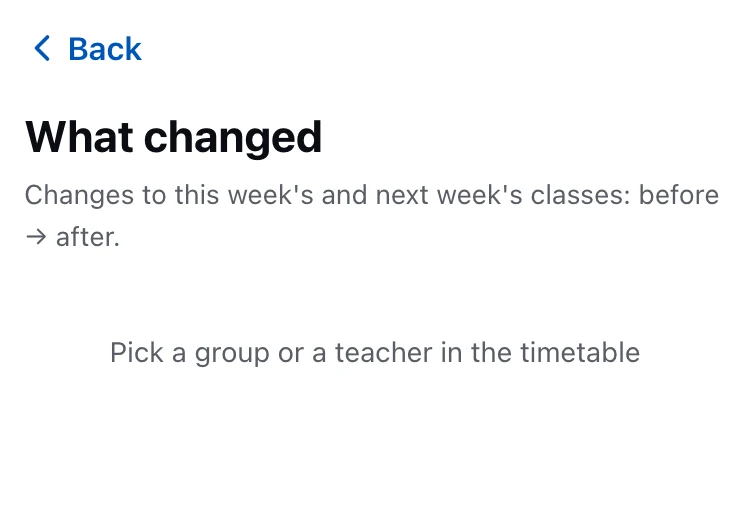
How to open it. The button with a list is in the schedule header next to the bell; the screen's address is /changes. On a desktop it appears when a group or a teacher is selected. On a phone it is always in the top row; if the row is crowded, the button moves to the "…" sheet (the bell stays outside, and the "…" lights a dot if there is something unseen in it). On a phone there is a back button at the top of the screen. The log belongs to the schedule you came from, and when you change the group in the schedule it is replaced by the new group's log.
What is in the list. Each change is a card. The heading holds the type and the subject: "New class", "Class changed", "Class removed", "Class cancelled". A cancellation is named separately, not hidden among "changed". Under the heading are the day, the time and the room of the lesson. Below is a line for each changed field in the form "was → became": "Room", "Time" (start and end together), "Date", "Status", "Teachers", "Groups", "Subgroup", "Class type", "Subject". If there is no earlier or new value, it says "not set" in its place. In old entries where the values were not kept, only the names of the changed fields are visible. At the very bottom of the card is when the change got into the log.
The week. The log holds lessons that the timetable puts on this week and next (in campus time). If a lesson was moved out of these two weeks, its entry disappears from the log.
Where the change came from. On the right of the card heading is a label: "miit.ru" — the change came from the institute's website, "institute" — it was made in the app itself.
The unseen badge. On the button in the header is the number of entries you have not seen yet. Only entries that appeared after the app was first opened on this device and after your last opening of the screen are counted: the history before the first launch does not become a badge. The badge goes out as soon as the screen has opened and the list has loaded; entries that were new are highlighted in the list for the time of the visit, and when you leave the screen the highlight goes. The record of the viewing is kept in the browser, not in the account, so on another device the badge is counted anew.
Empty states. While nothing is selected: "Pick a group or a teacher in the timetable". While the answer is still coming — a loading indicator. If there were no changes in two weeks: "Nothing has changed this week or next". If the list did not load and there is nothing to show — an error message with a way to repeat the request. Without a network the screen shows the last saved copy.
Badges in the menu
On a desktop the items of the side menu show counters of unread: "Schedule" — the same number as on the bell, "Feedback" — new feedback, "AI answer ratings" — new ratings. A section counts as read when you open it; for "News" (where it is on) the counter counts new posts by subscriptions and goes down differently — see the "News" page. The "Logs and status" item has, instead of a counter, a status mark of the services: red if some service is not answering, and a yellow "!" if the log storage is unavailable.
On a phone there is a counter on the bottom bar for the "Schedule" tab and, where news is on, for the "News" tab — what it counts is told on the "News" page. There is no side menu there, it opens with the ☰ button in the top row of the schedule, and everything its items count is gathered on the button itself as one number: new feedback, new ratings of AI answers, requests and open conflicts (what is available to you by your rights). The schedule's number is not included — the bell next to it already shows it. If there is a fault in the platform's services, the same status mark appears on ☰ as at "Logs and status" on a desktop; it is visible to those who have access to the state of the services.
The first tab of the bottom bar carries the name of the page you are on. The pages from the side menu — "Teachers", "Rooms", "Occupancy", "Handbook" and others — open on a phone under the "Schedule" tab, and the label "Schedule" above them would mislead. So the tab changes its label and icon to the name of the open page. Pressing it still leads to the schedule: it is the way back. While the "AI assistant" or "Settings" tab is open, the first tab remembers the last page and returns to it together with the filters; the memory lives until the app is closed, so after a cold start the tab is called "Schedule" again.
Checked: 2026-10, PWA fbb681a8, platform 4b502bd1.