
Feedback
Updated 27.10.2026
How to write to a developer
There is a “Feedback” item in the “Support” section: it opens a window on the computer, and a list on the phone. On the phone, the same item is in the settings, in the “Support” section.
The window first offers you to choose where to write: “Create an appeal” — right in the application, after logging in; direct channels that are configured for installation — Telegram, MAX, mail; without logging in, instead of contacting — “Write here”, a letter in the mail client with the finished text. There is a “My Requests” link at the bottom of the logins.
“Create an appeal” opens the form: “Type of appeal” (“Complaint”, “Idea”, “Gratitude”, “etc”.), “How do you like the application?” — star rating, which is saved immediately and separately from the text, and the “Message” field. The “Create ticket” button sends the request; the “Back” button returns to the selection.
Call back by phone
If you have consent for feedback enabled on your installation, there is an optional field in the form to “call me” back with a number in the format +7 (900) 000-00-00. Without a number, the request goes away as usual, and consent is not needed.
If you have entered a number, it must be complete — ten digits after +7, otherwise the request will not be sent. Then you need to mark the consent I “give consent to the processing of the phone number for a callback”; the check mark is unchecked by default, and the “Consent Text” link opens the document itself. First, the consent is saved, then the appeal goes away.
You can see the number and the support. It is hidden from screen recording in Yandex.Metrica. In “My messages”, the number is shown under the text, next to the “Remove number” button, after which support does not see the number. The number is deleted one year after the request is closed.
My requests
Your requests can be found on the “My Requests” page in the “Requests” section of the menu (after logging in); the “My Requests” line in the phone settings and the link in the feedback window also lead there. Each one has a type, status (“Open”, “In Progress”, “Closed”), date, text, and correspondence underneath. The “Add Request...” field adds another message to the request, for example, a forgotten detail or is “still being repeated”; adding a closed request opens it again. The message itself is not editable.
When a request is answered or its status is changed, a notification arrives: a bell (“you received a response on request “…””, “Request “…” is in progress”) and a push notification, if they are enabled. Instead of “…”, the notification names the request with the first words of its text, and clicking on it opens “My requests”.
Messages and responses in the request are shown in the application language: if they are written in another language, there is a “machine translation” and a “Show original” button below them. While the translation is not ready, the original is visible.
If there is an error
Any error in the application — the schedule did not load, it was not possible to log in via Telegram or MAX, the screen is broken — shows a short reason and a More “Details” button. Below it is an error code and a number for support, for example “AUTH-TG-401 · ref 7F3K-21Q9”: the code says what is broken, the number indicates which case. First, try what the error itself suggests — for example, “Try again”.
Such codes are often found:
- AUTH-TG-WIDGET — the Telegram login button did not load: telegram.org unavailable from your network. It often helps to turn off or turn on the VPN or log in via MAX.
- AUTH-TG-... and AUTH-MAX-... — login via Telegram or MAX failed; the number at the end is the server's response, NET is no connection, TIMEOUT is the server did not respond on time.
- NET-OFFLINE and NET-TIMEOUT — there is no internet connection or the response did not arrive on time. Check the connection and repeat.
- The API- and the number — server responded with an error.
- APP-CRASH, APP-CHUNK, APP-UNHANDLED — failure in the application itself; APP-CHUNK usually means that the application has been updated and helps to reload the page.
“Copy the details” and put the code, number and description of the case in the clipboard. You can paste them into a message or into a support message. “Send to Developers” opens a window with an optional field “What were you doing when this happened?” and the “Send” button; you don't need to log in for this. After sending, the window shows the report number — name it if you write to support. If you are logged in to your account and have written a comment, a request is created from the report, and the response will be sent to “My Requests”.
What goes to the developers: the error code, the number, the error text, the page address without parameters, the version of the application, the type of device and browser, the language, whether there is a network, the last steps in the application (transitions and requests without their contents) and, if you are logged in, your account. What never goes away: passwords, tokens and cookies, the contents of requests and responses, your messages, data from pages and location. Mail addresses, phone numbers, and anything similar to keys are cut out once more on the server. The reports are stored for 90 days and then deleted.
If you have allowed analytics, the application itself sends a report on a screen failure and an error that nothing has handled — no more than five per session. Without consent for analytics, reports go away just by clicking a button.
Complaint about a public card
Logins have a “Complain” button on someone else's public card. Describe what is wrong with the card — from 5 to 500 characters — and click “Send a complaint”. The complaint is seen only by moderators; the author of the card will not know about it or about the person who complained. You can't complain about your card; you can send no more than five complaints per day. A repeated complaint about the same card does not create a new one until the first one has been reviewed.
The complaint appears in “My” Card Complaint type of requests, and the moderator's response comes in the same way as the response to a regular request.
The question of convenience
Once a semester, the app asks: “How convenient is it for you to use VISH?”. The card appears after the fifth day when you opened the app, but not before. The semester is autumn (September–January) or spring (February–August); in each you are asked once. On the computer, the card is in the corner of the screen, on the phone it is above the bottom panel, and it does not interfere with work.
Choose a rating from 1 (“inconvenient”) to 5 (“very convenient”), add a comment if desired, and click “Submit”. If it was not possible to send, the card remains with your text: check the connection and click again. “Close” removes the card with a single tap. Whether you answered or closed, she won't appear again this semester.
The answer is anonymous: you do not need to log in, and your name and account are not recorded. The app adds a random installation number (the same as in the session counter), your role, and the group from your profile to the response. How many days you have used the app is remembered only on this device, in the browser.
Appeals are for employees
The “Requests” page in the “Tools” section is available with the right to “View and process user requests”. Here is a list of everything that users wrote: the type, the author (First “Name, Last name (@nickname)”) and his role, the rating of the application at the time of the request, the time, the text, the screen from which they wrote, and the version of the application.
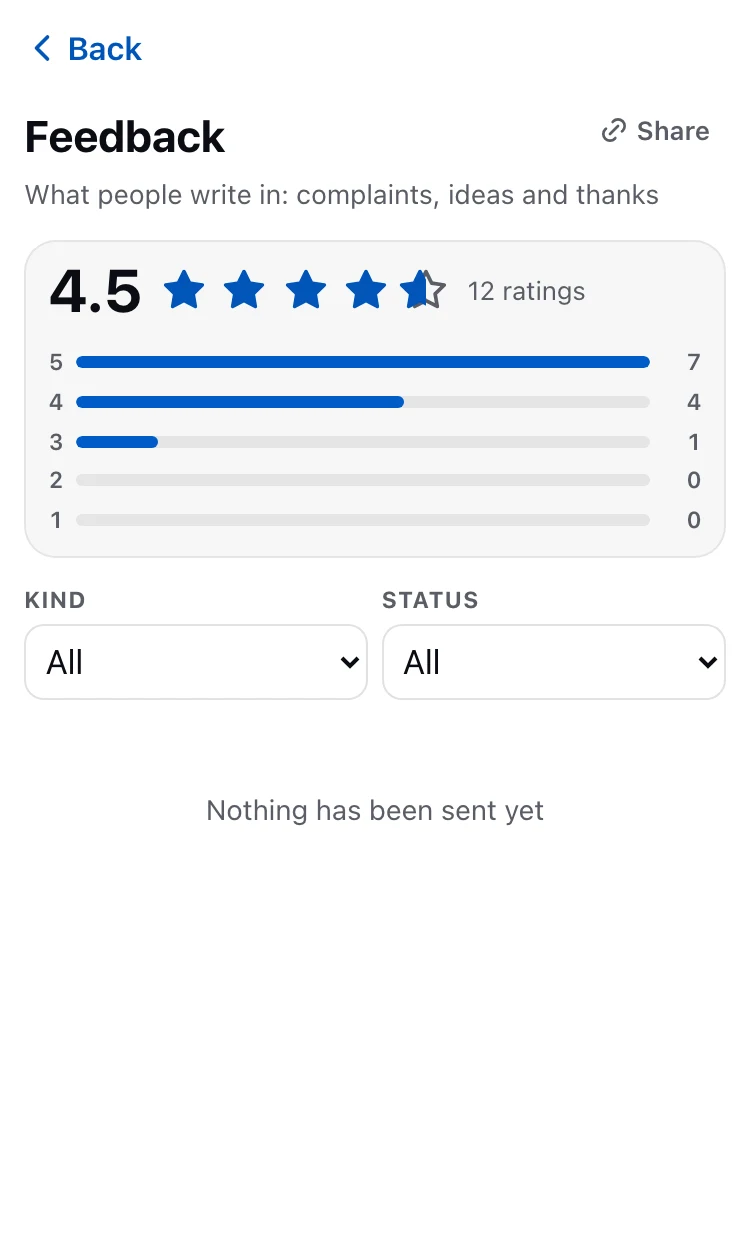
Above the list is a summary of the app's ratings: average score, number of ratings, and star distribution. If no one has rated it “yet, the App is worth it. No one has rated” it yet.
Filters: “Type” and “Status” (“Open”, “In Progress”, “Closed”). Each request has three status buttons — “Open”, “In Progress”, and “Closed”; clicking immediately changes the status, and the author receives a notification.
Complaints about public cards are also sent here with “the Card Complaint” type. Such a complaint has a “Card” line with a link to the card itself and, if you have the right, “Moderation of public cards.: hide, clear, hide photo”, “Moderate” button: on the computer it leads to the user's page, on the phone it opens the “Public Card” sheet right here. What can be done with the card is on the “Roles, Rights, and Users” page. Automatic verification creates part of the complaints: if the card contains only links or its title or text “About yourself” (from 20 characters, excluding case and spaces) matches the card of another account, one complaint appears with the author “Automatically checking” and marking “Only links” or “text Repetition”. Complaints about the cards are not included in the summary of the app's ratings.
Under the text of the message is the correspondence and the “Reply field.”... The response is sent to the author by notification; the response to an open appeal automatically translates it “into work”. You cannot respond to a closed request. First, open it again. New requests are marked with a counter on the menu item; the counter is reset when the page is opened.
Error reports — for employees
The “Error Reports” page in the “Tools” section is available with the same right to “View and process user requests”. Here, the reports that people sent with the “Send to Developers” button, and the ones that the app sent itself, are new from above. Each has a code, a type (“Login”, “Network”, “Server Response”, “Screen Failure”, “Raw”), a source (“Sent by a person” or “Automatically”), a time and a counter “×N” — how many similar reports came in the grouping window. “The comment” marks and the “message” indicate that the person wrote something and the message was created from the report.
Filters: The “code” (the whole code, for example “AUTH-TG-WIDGET”), “Type” and “Source”; “Reset” removes them. If the person called the number, open the page with it at the address: /error-reports?ref=7F3K-21Q9. The report card shows what the person saw, the page, the request and its “request ID”, application version, device, network, browser, account (or “without login”), comment and “Recent steps”; failures have a stack. “Open request logs” leads to the platform logs by request ID, if a link is configured on the installation; “Open requests” — to the request created from the report.
If alerts are enabled, the team receives them in Telegram, in the “Alert” topic: one message per error in half an hour, then the counter grows in it.
Verified: 2026-10, PWA fbb681a8, platform 3474bfa8._