
Getting started
Updated 27.10.2026
VISH is a timetable app for the Russian University of Transport, RUT (MIIT). It is for the whole university: students, teachers and staff of any institute. It has the timetables of groups and teachers, free rooms and occupancy, analytics on the timetable, notes and reactions on classes, notifications about changes and an AI assistant that answers questions about the timetable and your studies.
Two shells: desktop and phone
It is one app, but it looks different on a desktop and on a phone. All pages, rights and settings are shared: what is open on a laptop is open on the phone too.
On a desktop there is a side menu on the left with five sections: "Main", "Management", "Requests", "Tools" and "Support". At the very bottom of the menu are "Settings", "Log in" or "Log out" and the "Collapse sidebar" button. In the collapsed menu only the icons are left, and the names show on hover and on keyboard focus; collapsing does not change the height of the items, only the width of the menu. In a window as narrow as 1024 px (on a tablet) the menu is collapsed by default, so the page has room; the "Expand sidebar" button opens it, and your choice is remembered and no longer depends on the window width. Where news is turned on, the "News" item comes right after "Schedule". Where the personal calendar is turned on, the "Calendar" item comes after "Schedule" (and "News", if there is any); on a phone it is in the "☰" menu. Where the campus map is turned on, the "Map" item comes right after "Occupancy" (on a phone it is in the "☰" menu too).
On a phone there are three tabs at the bottom: "Schedule", "AI assistant" and "Settings". Where news is turned on, "News" is the second tab, right after "Schedule". The first tab takes the name of the screen you are on: from teachers, rooms, occupancy, analytics, the guide and other pages it is named after them and shows their icon, and tapping it takes you back to the schedule. "AI assistant" is shown only where the stand has turned the AI on; on other stands this tab is missing and two are left, and on a desktop there is no "AI assistant" item in the "Support" section. Everything else — teachers, rooms, occupancy, analytics, the guide and the sections for staff — is in the menu that opens with the "☰" button on the schedule screen. It is called "Menu" and is split into the same sections as the side menu on a desktop. From other screens the "Back" button at the top leads back. On a page opened from the menu it returns you to where you opened the menu, filters included — even if you switched to "Settings" and back in between. If the page was opened by a link or after a reload, "Back" leads to the schedule.
The menu items you are not allowed to see are simply not shown. If you type the address of such a page by hand, the app returns you to the schedule.
What is available without signing in
The schedule, teachers, rooms, occupancy, the guide, the installation guide and the AI assistant work without signing in. Analytics is open to staff with the matching right. You need to sign in to:
- react to classes;
- get notifications in Telegram or MAX (notifications in the app itself work without signing in too);
- write feedback to the developer right from the app and rate the app;
- ask the assistant more questions and keep the conversation across devices;
- use the sections for staff: rights, users, the audit log, student lists and the rest that your role grants.
You can sign in through Telegram or MAX. How to do it is described on the page Settings and profile.
Installing as an app
VISH can be installed on a phone and on a desktop: it appears on the home screen or in the list of programs and opens in its own window, without the browser's address bar. On a phone, from the second visit, once a group or a teacher is chosen, the schedule page shows the line "Install VISH on your Home Screen" with the "Install" button; "Dismiss" hides it for 30 days. The detailed steps for iPhone, Android and desktop are on the "Installation guide" page in the "Support" section.
First launch
The pages of a group's timetable, a teacher's timetable and the guide show at once, before the app itself has loaded — with no splash screen with the logo and no jump when the app takes them over; the phone gets a page drawn separately. If the app takes longer than usual to start, a hint with the "Update" button appears at the bottom. The installed app, Telegram and MAX open from the splash screen, as do those who already have a group or a profile saved.
Without internet
The app saves the week of the schedule you have open and the neighbouring weeks, and, on a good connection, also the current weeks of your favourites and the list of teachers. What is saved is kept for up to two weeks and does not disappear when a new version of the app comes out.
The installed app opens at once even if there is no internet or the server does not answer: the saved data is shown first, and fresh data is filled in as soon as it arrives. If the server is unreachable, one line appears at the top: "No connection, showing data saved at 25.09, 14:20" — it says when the data shown was received. Next to it the "Retry" button checks the connection right away (on a desktop it has a tooltip on hover, on a phone on long press), and the cross closes the line. The line stays until the connection returns.
You do not need to press anything: the app checks by itself whether the server has answered. When the connection is back, the line changes to "Saved at 25.09, 14:20 · updating…", then to "Updated" and quietly disappears. The schedule and the other screens update in place, without a reload: the saved data is visible first, then fresh data is filled in class by class, and the cards that have not changed are not redrawn. Scroll position, the open window and the chosen day stay as they were. A class that changed in such an update (room, time, cancellation) is highlighted for three seconds with a calm ring; with "Animations" turned off there is no highlight. If a list or the schedule did not load at all, the screen tries again after 8, 20 and 45 seconds and at once when the connection returns; the "Retry" button is always there. Everything you managed to type (the text of feedback, a review or a note) stays in the field until it can be sent.
If the app itself cannot start — the site does not answer or its files did not load — instead of an empty screen or a browser error, the page "VISH is temporarily unavailable" opens with the explanation "We are already fixing it". A slow connection does not cause it: the page appears only on a real failure. It checks by itself whether the app is working again — after 5, 10, 20 and 40 seconds, then once a minute, and at once when the internet appears — and opens the app as soon as it answers. The "Try again" button checks right away. If a schedule is saved on the device, the page has the "Open the saved timetable" link. The "Service status news" link (or "Contact support") leads to where the failure is reported. The page speaks the language of the app and follows its theme.
If the whole service is not answering, the site can open its own saved copy: the timetables of groups and teachers, the guide and the "About the app" page as they were at the last update of the site. At the top of each such page is a yellow bar "The app is temporarily unavailable. This is a saved copy: data as of …" with the date and time in Moscow: the schedule may have changed since then. In the copy you cannot sign in, search or change anything, and it exists only in Russian. The page "VISH is temporarily unavailable" shows links to the saved pages at that time and opens the app by itself as soon as the service works. An installed or previously opened app opens on its saved data, as described above.
A server failure does not sign you out: the sign-in is kept, and you do not need to sign in again after the connection is restored.
If your sign-in ran out while you were using the app, the schedule, the directories and the guide keep working, and a message "Your session expired…" with the "Sign in again" button appears at the top. A page that requires signing in offers the same button, and a page without access offers "To the timetable".
Language and appearance
The interface is available in Russian, English and Chinese. The language, the theme (light, dark or as in the system) and the accent colour can be changed in the settings, in the "Appearance" section. The "Holiday effects" group is there too — seasonal decoration for holidays: it can be turned off, made rarer or smaller.
What's new
The list of the app's changes by version is under "Settings" → "About" → "What's new". On a phone the "VISH · Version …" line at the bottom of the settings leads there too. In detail — on the page Settings and profile.
Pages of this guide
The full list of pages, grouped by section, is on the main page of the guide: the "Guide" item in the menu. New pages appear there by themselves, so it is always fuller than any list here. Where to start:
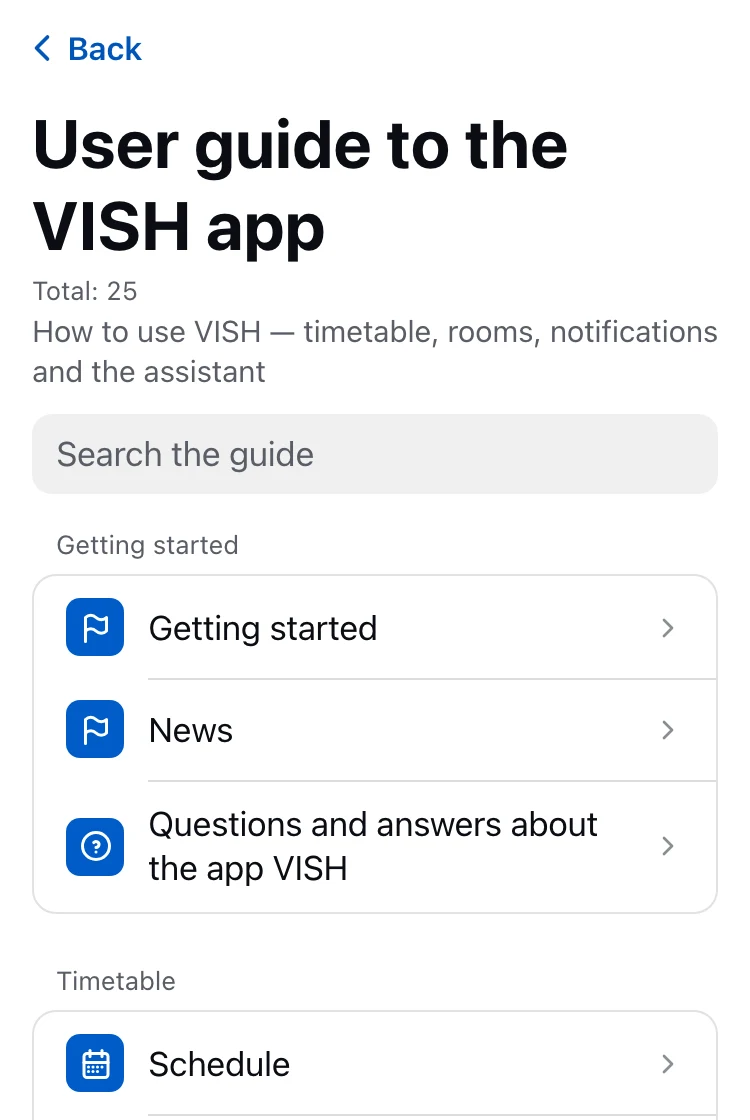
- Schedule — choosing a group and a teacher, week and day, schedule links, export to a calendar and to PDF.
- Notes and reactions — what you can attach to a class.
- Notifications — the bell, notifications in the app and in messengers.
- Teachers and rooms — the directories.
- Occupancy and free rooms — what is free now and how busy rooms, groups and teachers are.
- AI assistant — chat, commands, limits and answer ratings.
- Settings and profile — signing in, appearance, institutes, installation.
- Feedback and requests — how to write to the developer.
Checked: 2026-10, PWA fbb681a8, platform 3474bfa8.